How to Connect Treadmill to Zwift Running App?
Integrating your indoor running machine with virtual training platforms unlocks immersive worlds. Follow this technical setup guide to pair hardware successfully.

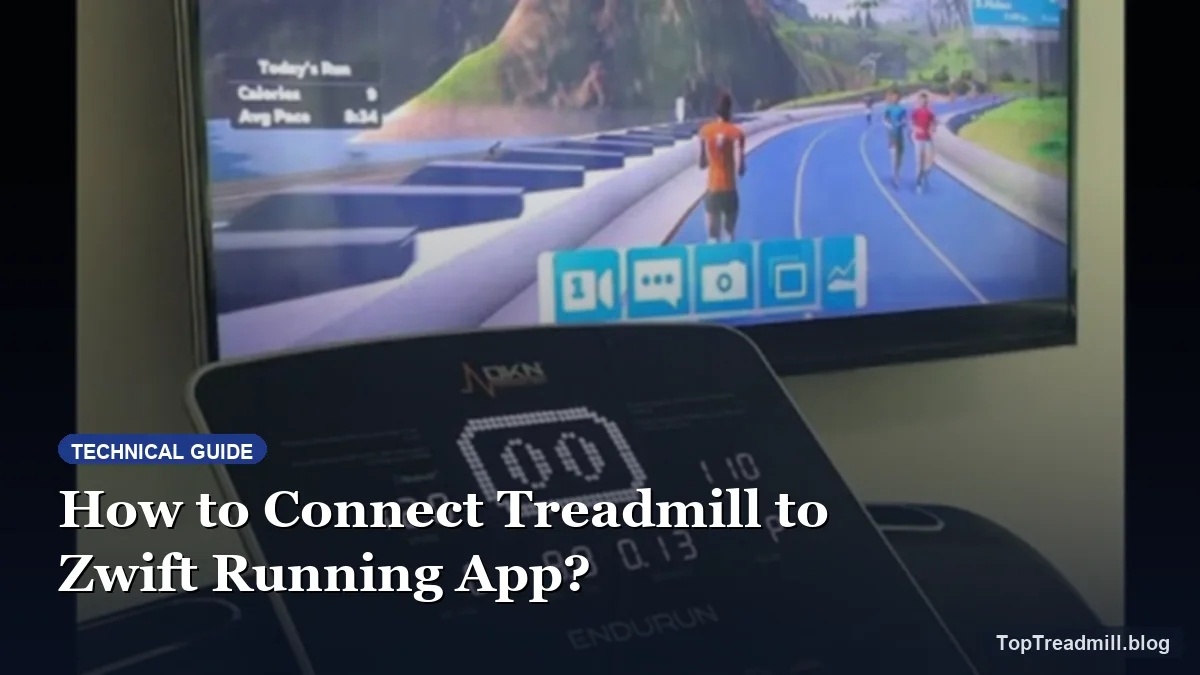
Ensure your fitness equipment transmits Bluetooth FTMS or ANT+ metrics before launching the application. Proper sensor pairing guarantees accurate speed and cadence data broadcasting.
Ready to compare models? Start with our Best Treadmill: Top Home Cardio & Under-Desk Picks (2026).
Practical Quick-Reference Table
| Scenario / Metric | Recommended Target | Why It Matters |
|---|---|---|
| Protocol Type | Bluetooth FTMS | Ensures direct bidirectional speed control |
| Signal Range | Under 2 Meters | Prevents intermittent dropouts during runs |
| Footpod Sensor | Stryd or Runn Device | Bridges non-smart legacy treadmills |
| App Permissions | Location & Bluetooth | Required for OS device discovery |
| Firmware Version | Latest Manufacturer Update | Resolves pairing bugs and protocol errors |
| Calibration Offset | Plus or Minus One Percent | Aligns belt speed with virtual avatars |
Understanding Treadmill Compatibility and Protocols
Modern running machines rely on standardized communication protocols to transmit telemetry. Equipment must support Fitness Machine Service profiles to interface smoothly with virtual worlds.
Check your console manual for explicit compatibility statements regarding third-party software. Many brands now integrate native Bluetooth Smart technology directly into their primary circuit boards.
Legacy treadmills lack built-in wireless transmitters entirely. Users with older hardware must install aftermarket optical sensors or magnetic speed tags to bridge the technological gap.
Confirming your hardware specifications prevents wasted troubleshooting hours. Always verify exact model numbers against current software developer compatibility lists before attempting any initial configurations.
Modern treadmills typically broadcast workout metrics using Bluetooth FTMS or ANT+ protocols. Checking your console manual confirms if native virtual training apps are supported without requiring external bridge hardware attachments.
Bluetooth 4.0 and newer standards provide the necessary bandwidth for continuous speed data transmission. Verify your machine utilizes standard Fitness Machine Service profiles to ensure seamless pairing with modern mobile operating systems.
Legacy treadmills lack built-in wireless transmitters, requiring aftermarket foot pods like the Runn sensor. These optical units attach directly to the treadmill hood and track belt revolutions using reflective infrared optical sensor tape.
Signal interference can occur when testing the best treadmill for zwift running on crowded wireless frequencies. Maintaining a clear line of sight between console and tablet minimizes packet loss.
- Verify Bluetooth FTMS certification in manual specs.
- Inspect console interface for wireless indicator lights.
- Disconnect competing fitness watches from the machine.
- Ensure firmware is updated to the latest revision.
Identifying Wireless Standards
Bluetooth Low Energy dominates modern indoor exercise equipment designs. This protocol allows efficient data transfer while preserving internal battery and console power supplies.
ANT+ remains a popular alternative for dedicated sports monitors. Ensure your tablet or phone supports your chosen protocol natively or via an external adapter.
- BLE standard handles high data throughput effortlessly.
- ANT+ broadcasts to multiple displays simultaneously.
Preparing Your Device and Operating System Settings
Mobile operating systems require specific permissions to scan for nearby hardware. Navigate to your device settings menu and verify that Bluetooth access is fully enabled.
Location services must also remain active during the initial device pairing phase. Operating systems bundle Bluetooth scanning permissions directly into general location tracking authorizations.
Close any background fitness applications that might claim exclusive connection rights. Competing software can easily block the virtual training platform from discovering your running machine console.
Restart your smartphone, tablet, or laptop to clear temporary system cache files. A fresh boot cycle frequently resolves stubborn wireless adapter initialization bugs prior to launching workouts.
Before launching the application, ensure your tablet or smartphone has Bluetooth permissions fully enabled within the system settings. Disabling battery optimization for the training app prevents unexpected background process terminations mid-run.
Restarting your mobile device completely clears the local Bluetooth cache and establishes a fresh radio frequency connection. Operating system updates often patch critical connectivity bugs that disrupt peripheral pairing routines.
Turn off nearby smart devices that might hijack your broadcast stream while reviewing specs from our treadmill deck size calculator. Connecting multiple peripherals can overwhelm the console transceiver.
Position your display screen within one meter of the treadmill console to guarantee optimal signal strength. Avoid placing metal objects or water bottles directly between the transmitting antenna and your device.
- Enable system Bluetooth in master settings.
- Grant location permissions to the running app.
- Terminate background fitness software processes.
- Restart mobile device before launching workouts.
Video Walkthrough: How to Pair Your Devices to Run on Zwift
Navigating the In-App Running Connection Menu
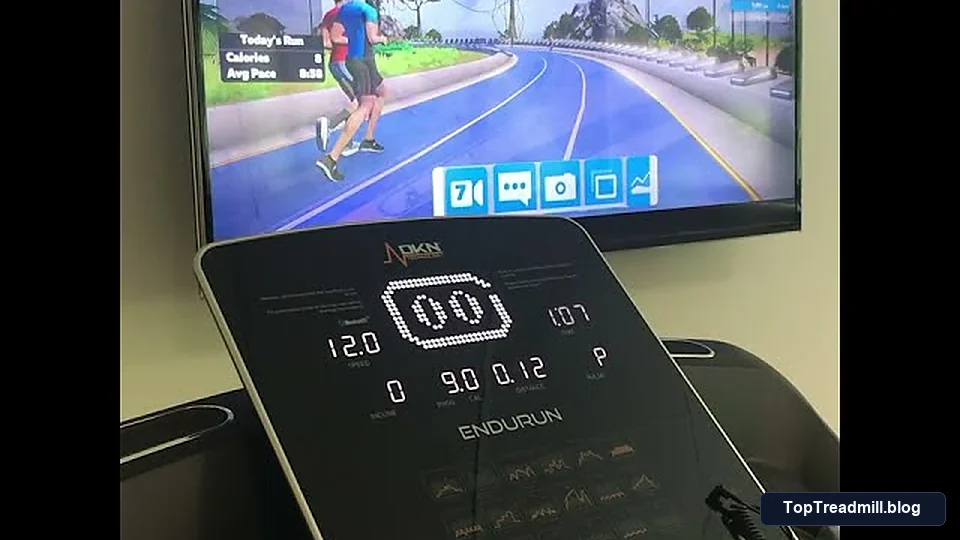
Launch the virtual application and log into your registered user profile. Tap the primary Running pairing screen located directly on the main dashboard interface.
Select the specific sensor category matching your hardware architecture, especially when evaluating treadmill running vs outdoor running. Choose the main icon to initiate a local wireless scan.
Wait patiently while the software compiles a list of available signals. Your machine identification number should appear within several seconds if pairing conditions are optimal.
Tap your specific hardware name to finalize the secure handshake process. A solid indicator icon confirms that telemetry data is now streaming into the virtual environment.
Open the application and navigate directly to the pairing screen designated for running hardware. Select the speed sensor option rather than standard cycling trainers to configure your virtual avatar correctly.
The pairing interface will scan for nearby compatible broadcasting hardware using standard radio frequencies. Tap your specific treadmill model or optical foot pod name once it populates in the active device list.
Verify that both speed and cadence metrics display live numerical values on your screen. A static zero reading indicates a handshake failure, requiring you to restart the sensor pairing sequence entirely.
Save your configured hardware profile so the software automatically recognizes your equipment during future workouts. Proper profile saving reduces pre-run setup friction and ensures consistent metric tracking across all sessions.
- Open application dashboard and select running mode.
- Tap sensor pairing icon to start scanning.
- Select correct treadmill name from discovered list.
- Verify solid connection indicator before starting.
Troubleshooting Common Signal Dropouts and Pairing Fails
Wireless interference often disrupts data transmission between hardware consoles and mobile displays. Keep your tablet mounted close to the console to maintain maximum signal strength.
Electromagnetic radiation from household appliances can degrade low-energy Bluetooth packets significantly. Move rogue electronics away from your workout space to establish a cleaner communication channel.
Clear the internal application cache if your console repeatedly disconnects mid-run. Corrupted temporary files frequently sabotage ongoing data streams during extended high-intensity interval training sessions.
Unplug your treadmill from the wall outlet to perform a hard reset. Power cycling the main control board clears stubborn firmware glitches affecting external wireless communication modules.
Signal dropouts usually stem from localized wireless congestion caused by nearby Wi-Fi routers. Relocating your training setup away from heavy interference zones dramatically improves overall packet transmission reliability.
If the application fails to discover your equipment, power cycle the treadmill completely. Unplugging the wall power cord for sixty seconds clears residual electrical charge from the internal logic board.
Ensure no other fitness applications running in the background are secretly holding active Bluetooth connections. Only one software client can successfully read live telemetry data from your treadmill console simultaneously.
Check the battery voltage of external bridge modules or wireless foot pods using a multimeter. Low battery levels frequently cause erratic signal strength and abrupt disconnections during high-speed running intervals.
- Minimize physical distance between console and tablet.
- Eliminate sources of severe electromagnetic interference.
- Perform hard resets on treadmill control boards.
- Clear application cache data files regularly.
Utilizing Bridge Devices for Non-Smart Equipment
Non-smart running machines require external hardware additions to track metrics. Optical footpods attach securely to shoelaces to measure exact forward velocity and cadence parameters accurately.
Magnetic roller sensors mount onto treadmill frames to detect belt rotation speeds. These units convert analog mechanical movement into digital Bluetooth signals readable by training software.
Follow manufacturer instructions carefully when installing aftermarket speed tracking accessories. Proper alignment ensures that recorded metrics match your actual running effort inside the virtual world.
Pair the bridge device as a speed source rather than a treadmill. This distinction prevents software conflict errors when configuring your virtual running avatar parameters.
Traditional treadmills lack internal Bluetooth transmitters, necessitating specialized hardware bridge devices to convert analog signals. These compact adapters translate proprietary console outputs into standardized fitness data streams.
Optical sensors attach securely to the side rail, pointing directly at a reflective sticker placed on the belt. Every belt revolution reflects light back to the sensor, calculating exact linear belt speed.
Cable converters plug directly into legacy motor control boards to intercept raw tachometer pulses. These advanced adapters translate motor rotation counts into precise virtual speed metrics compatible with modern mobile applications.
Always calibrate bridge devices according to manufacturer specifications using a verified measuring tape. Accurate baseline measurements ensure your virtual avatar matches your physical effort level on the running belt.
- Attach optical footpods securely to shoelaces.
- Mount magnetic sensors precisely on rear rollers.
- Pair bridge hardware as a speed source.
- Verify sensor battery levels before every session.
Calibrating Speed Sensors for Accurate Virtual Pacing
Minor discrepancies often occur between physical belt speeds and software readouts. Performing a calibration test ensures your digital avatar reflects your true physical effort level.
Run a standardized speed test using a manual stopwatch alongside the app. Compare the physical belt velocity against the data transmitted by your connected tracking sensor.
Adjust the calibration factor within the application settings menu if speeds mismatch. Fine-tuning this metric prevents frustrating pacing anomalies during structured group workouts or races.
Re-test your calibration after making any significant hardware or software adjustments. Consistent verification maintains high data integrity across all your virtual training sessions over time.
Precise speed calibration eliminates discrepancies between your treadmill console display and virtual world pacing. Run a known fixed distance at a constant speed to determine your specific calibration offset factor.
Adjust the pulse multiplier settings inside your bridge device companion app to match physical belt speeds. Fine-tuning this metric prevents your virtual runner from moving too fast or lagging behind.
Account for belt stretching under load, which slightly alters actual surface speed during heavy running strides. Recalibrating your sensors every six months maintains long-term virtual pacing accuracy and realistic training metrics.
Perform manual timing tests using a physical stopwatch over a measured five-minute interval to verify consistency. Comparing physical split times against virtual logs guarantees reliable performance tracking for competitive running events.
- Execute manual stopwatch speed verification tests.
- Adjust calibration offset values inside app settings.
- Compare virtual avatar movement with actual exertion.
- Repeat calibration checks after firmware updates.
Maintaining Stable Connectivity During Extended Workouts
Long endurance runs demand uninterrupted wireless stability from your equipment setup. Check battery levels on all wireless sensors prior to starting marathon training blocks or long efforts.
Keep your mobile device plugged into a reliable power source during use. Low battery saver modes can aggressively throttle wireless adapter performance and cause sudden mid-run disconnects.
Inspect hardware ports and internal antennas for accumulated dust or moisture. Clean components ensure optimal electrical conductivity and prevent premature degradation of wireless transmission capabilities.
Keep application software updated to benefit from developer stability patches. Regular updates resolve known compatibility bugs that affect long-term connection reliability across various device models.
Long endurance runs require robust hardware setups to prevent frustrating mid-workout dropouts and data loss. Keep your mobile device plugged into a power source to avoid unexpected thermal throttling shutdowns.
Clear accumulated dust from treadmill console ventilation grills to prevent internal overheating of wireless transceiver chips. Proper thermal management preserves optimal signal strength throughout marathon training distance sessions.
Avoid running heavy background tasks when using your best home treadmill for running model. Maximizing available system RAM allocation ensures uninterrupted data transmission between the machine and your application.
Inspect peripheral connection cables periodically for signs of wear, pinching, or terminal corrosion. Securing loose wiring harnesses prevents intermittent signal disruption caused by vigorous running vibrations on the deck.
- Maintain adequate battery charge on display tablets.
- Clean hardware ports and wireless antennas periodically.
- Install software updates as soon as released.
- Avoid running low power modes during sessions.
Frequently Asked Questions
Why does my treadmill fail to appear in the app scan list?
Confirm that your treadmill console natively supports advanced Bluetooth FTMS communication protocols and remains completely disconnected from any active external smartphone or separate fitness watch hardware.
Verify that all required location tracking permissions are explicitly enabled within your mobile operating system settings to allow smooth hardware discovery during all fresh wireless scanning cycles.
Can I use a non-smart treadmill with virtual training apps?
Traditional non-smart running machines require external aftermarket accessories like optical footpods or magnetic roller sensors to successfully bridge existing hardware connectivity gaps completely.
These specialized wireless devices accurately translate physical belt movement into readable digital telemetry data that virtual training applications can easily interpret during your daily indoor workouts.
How do I fix intermittent signal dropouts during my runs?
Always keep your mobile display mounted securely close to the console to eliminate physical interference barriers and maximize overall wireless signal strength during sessions.
Thoroughly clearing application cache files and performing periodic hard resets on your treadmill control board effectively resolves persistent data drop issues during workouts.
What should I do if my speed does not match the virtual world?
Run a strict manual stopwatch verification test to compare physical belt velocity against transmitted sensor data across multiple speeds accurately.
Carefully adjust the specific calibration offset factor inside your application settings menu to align your virtual avatar pacing correctly with reality.
Do I need an internet connection while running on Zwift?
An active and stable broadband internet connection is strictly required to stream virtual worlds and upload completed workout data files successfully.
Standard offline operating modes are generally not supported for multiplayer virtual running sessions or large community group events within the software.