How to Connect Treadmill to Zwift? Setup Guide
Connecting your treadmill to virtual training platforms unlocks immersive indoor running. Proper protocol selection ensures seamless telemetry synchronization.

Successful integration requires compatible Bluetooth or ANT+ sensors paired directly with your running application to broadcast accurate speed and cadence metrics.
Ready to compare models? Start with our Best Treadmill: Top Home Cardio & Under-Desk Picks (2026).
Practical Quick-Reference Table
| Scenario / Metric | Recommended Target | Why It Matters |
|---|---|---|
| Connection Protocol | Bluetooth FTMS / ANT+ | Ensures universal software compatibility |
| Sensor Placement | Frame or Shoelace | Directly impacts telemetry accuracy |
| Signal Range | Under Three Feet | Prevents frustrating mid-workout dropouts |
| Belt Calibration | Within One Percent | Maintains structured training integrity |
| Battery Voltage | Above 3.2 Volts | Avoids intermittent data packet loss |
| Firmware Version | Latest Available | Resolves known software pairing bugs |
Understanding Virtual Running Protocols and Treadmill Compatibility
Virtual training environments rely on standardized wireless communication protocols. Your treadmill must broadcast speed and cadence metrics using open industry standards like FTMS or Bluetooth Smart.
Older motorized treadmills often lack native wireless transmitters. Integrating these legacy machines requires aftermarket hardware bridges or foot pods to translate physical belt movement into digital packets.
Modern smart running decks feature built-in Bluetooth Fitness Machine Service boards. These microcontrollers communicate directly with mobile devices running your preferred virtual simulation software without third-party adapters.
Evaluating your console specifications prevents configuration frustration during initial pairing sequences. Check manufacturer manuals for specific protocol support before attempting software connection processes.
Virtual running platforms rely on standardized Bluetooth FTMS protocols to communicate belt speeds directly with apps like Zwift. Consult our best home treadmill for zwift guide to find hardware with seamless virtual training compatibility.
Modern treadmills broadcast UUID 0x1826 fitness machine service data, which includes real-time metrics such as instantaneous speed, incline angles, and elapsed workout duration captured via optical sensors mounted near the drive motor flywheel.
Legacy treadmills lacking native wireless transmitters require external bridge devices or foot pods to convert mechanical stride cadence into compatible running metrics recognized by virtual training software operating on iOS or PC.
Evaluating treadmill compatibility demands checking your console firmware version alongside manufacturer specifications to ensure support for bi-directional data exchange, preventing frustrating connection drops during high-intensity interval training sessions.
- Verify native Bluetooth FTMS support before buying accessories.
- Identify console transmission types using official user manuals.
- Check operating system requirements for target applications.
- Ensure wireless adapters remain unblocked by metal frames.
Identifying Legacy Versus Smart Consoles
Smart consoles natively broadcast speed data over standard radio frequencies. Legacy units require external sensor attachments like smart foot pods or specialized heart rate bridge devices.
Inspect your console settings menu for wireless pairing options. Finding an explicit sensor menu confirms native support for external application integration.
- Scan console menus for hidden diagnostic pairing modes.
- Inspect hardware ports for physical telemetry output jacks.
Hardware Requirements and Bridge Device Integration
When native console connectivity is unavailable, external hardware bridges provide an essential communication link. Devices like Runn sensors attach to the frame to track belt revolutions optically.
Optical sensors utilize reflective stickers placed on the running belt. As the belt rotates, the optical reader calculates exact velocity and broadcasts the data wirelessly.
Smart foot pods attach directly to your running shoes or shoelaces. Explore our best smart treadmill for zwift options to discover connected models that bypass external pods entirely for accurate data streaming.
Maintaining clean optical sensors ensures uninterrupted signal transmission during long running sessions. Dust accumulation on the reader lens can cause erratic speed readings or total signal loss.
Connecting non-smart treadmills to virtual worlds necessitates physical hardware bridges like the NPE Runn sensor or standard BLE-to-ANT+ dongles placed within three feet of the running deck to minimize signal interference.
Installing an optical speed sensor requires applying two reflective stickers onto the treadmill belt sidewall, spaced precisely apart to allow the optical lens to calculate belt velocity within a one percent margin of error.
USB Bluetooth adapters should feature Class 1 transmission specifications, providing an operational range of up to 100 meters to maintain stable pairing through household walls and localized electrical interference from motors.
Hardwiring your bridge device via USB power supplies prevents sudden battery failure mid-run, ensuring continuous telemetry transmission and preserving accurate training logs stored within your primary virtual cycling and running account.
- Position optical tracking stickers cleanly on the belt edge.
- Secure bridge units tightly to prevent vibration shifts.
- Replace foot pod batteries according to manufacturer schedules.
- Keep optical lenses free from treadmill belt lubricants.
Installing Optical Speed Sensors Properly
Mount the optical sensor securely to the side rail of your treadmill frame. Align the tracking eye precisely with the path of the reflective belt sticker.
Test sensor alignment by manually rotating the belt slowly. Confirm that the LED indicator flashes synchronously with each passing reflective marker.
- Tighten mounting clamps firmly against solid steel frames.
- Test flash synchronization across multiple rotation speeds.
Video Walkthrough: Connecting Zwift to Threadmill updated 2025
Step-by-Step Bluetooth and ANT+ Pairing Sequence
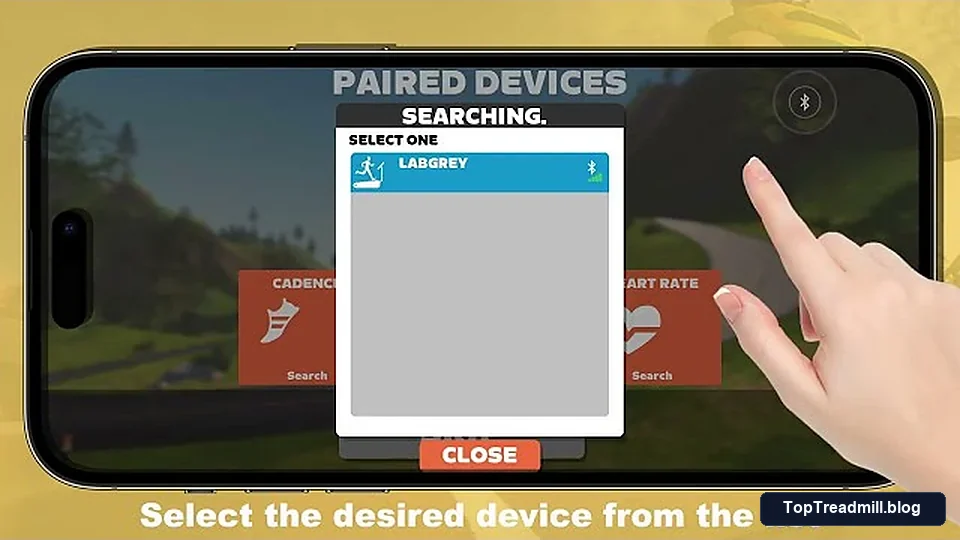
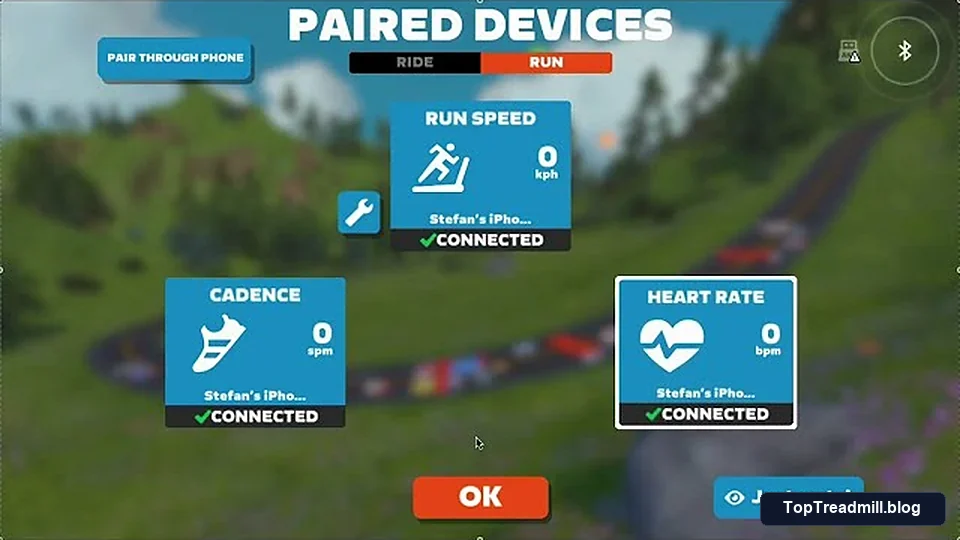
Launch your virtual training application on a compatible tablet, phone, or computer. Navigate immediately to the paired devices screen before starting your physical run session.
Select the run category to activate searching for available hardware transmitters. Your treadmill console, optical bridge, or foot pod should appear within the active device list.
Tap the corresponding hardware name to initiate the secure pairing handshake. Verify that the connection indicator icon changes status to solid or active.
Perform a brief manual belt movement to test telemetry transmission. Check that the on-screen avatar responds immediately to your physical treadmill adjustments.
Initiate the pairing sequence by turning on your treadmill console and checking our best treadmill for zwift running list to prevent channel contention with background smartphone fitness apps.
Open the pairing menu inside the virtual training application, select the running icon, and wait for the software to scan for nearby FTMS broadcast signals or paired bridge sensor identifiers.
When your treadmill or bridge device appears on screen, tap the connect button and verify that the status indicator shifts from searching to a solid connection icon before stepping onto the moving belt.
Calibrate your heart rate monitor or foot pod immediately after successful treadmill pairing to establish baseline metrics, reducing synchronization lag during sudden acceleration or grade changes throughout your workout.
- Activate application device search before pedaling or running.
- Confirm stable connection icons before starting workouts.
- Test avatar response using slow manual belt rotations.
- Save paired hardware profiles for faster future startups.
Managing Multiple Wireless Signals
Interference from nearby electronic devices can disrupt delicate wireless pairing sequences. Power off competing Bluetooth peripherals before connecting your treadmill equipment.
Restart your application and console if connection handshakes fail repeatedly. Clear cached device memory to resolve stubborn pairing conflicts instantly.
- Disable unused Bluetooth adapters on nearby computers.
- Power cycle mobile devices to flush connection caches.
Calibration, Speed Matching, and Stride Sensors
Accurate telemetry depends on proper calibration between physical belt speed and virtual avatar movement. Discrepancies can ruin structured workout intervals and training intensity metrics.
Run at a steady, measured pace for five minutes while monitoring console readouts. Compare the physical belt velocity against the digital output displayed inside your application.
Adjust optical bridge scaling factors if you notice persistent speed discrepancies. Fine-tuning these internal parameters ensures precise metric alignment across all training platforms.
Foot pods often require manual stride length calibration via companion smartphone utilities. Walking or running a known distance provides precise correction data for software algorithms.
Speed matching requires manual verification using a handheld tachometer or timed belt checks. Use our treadmill deck size calculator before starting workouts to ensure your running platform accommodates your full stride length safely.
Foot pods like the Stryd or NPE device measure actual runner propulsion, requiring a calibrated wheel circumference input inside the companion mobile application to match treadmill belt speeds accurately.
Adjusting belt tension prevents slippage under heavy footstrikes, which otherwise causes sudden velocity drops in virtual training software despite consistent mechanical motor output from your heavy-duty drive assembly.
Regular calibration prevents the dreaded rubber-banding effect in group runs, ensuring your avatar mirrors your physical exertion rather than lagging behind due to mismatched sensor telemetry data.
- Perform baseline speed tests at moderate running velocities.
- Update scaling coefficients gradually to avoid overcorrection.
- Calibrate foot pods outdoors before moving indoors.
- Log baseline metrics to track long-term sensor drift.
Diagnostic Troubleshooting for Dropouts and Sync Errors
Signal dropouts during intense workouts usually stem from low battery levels or electromagnetic interference. Inspect all wireless sensor power sources before initiating troubleshooting routines.
Relocate your mobile device or computer closer to the treadmill console. Minimizing physical distance improves signal strength and prevents sudden telemetry disconnections mid-run.
Update your virtual application and console firmware to the latest available releases. Software bugs frequently cause unexpected pairing failures and erratic data transmission.
Verify that no other background applications are simultaneously claiming your hardware sensors. Only one active software client can control or read telemetry data at once.
Signal dropouts typically stem from 2.4 GHz interference generated by nearby Wi-Fi routers, microwaves, or competing fitness devices sharing the same wireless frequency spectrum within your home gym space.
Resolve persistent synchronization errors by power-cycling both your treadmill console and the host computing device, clearing cached Bluetooth profiles that frequently cause connection handshake failures.
Clean optical sensor lenses using a dry microfiber cloth to remove accumulated treadmill belt dust, which obscures reflective tape and disrupts accurate speed calculation algorithms.
Update your bridge device firmware using manufacturer diagnostic tools to patch known bugs, improve Bluetooth stack stability, and enhance overall compatibility with updated virtual platform releases.
- Check battery voltage levels using diagnostic applications.
- Clear background software tasks to free connection ports.
- Keep receiving screens within direct line of sight.
- Restart hardware sensors after executing firmware updates.
Video Walkthrough: Pairing screen
Routine Maintenance and Equipment Firmware Management
Regular equipment maintenance ensures reliable electronic performance over years of intensive indoor training. Keep your treadmill console and sensors clean, dry, and dust-free.
Inspect sensor wiring harnesses periodically for signs of fraying or pin corrosion. Secure loose cables away from moving mechanical parts to prevent accidental snagging.
Replace external bridge batteries proactively before they fail completely during a workout. Low voltage causes intermittent packet loss and frustrating software disconnects.
Back up customized calibration profiles if your hardware console supports user settings export. Having a saved configuration profile simplifies post-update system restoration.
Maintain peak connectivity performance by inspecting bridge sensor alignments monthly, ensuring reflective optical stickers remain undamaged and securely adhered to the moving treadmill belt.
Check manufacturer websites quarterly for critical treadmill console firmware updates that often contain vital Bluetooth protocol patches resolving connection instability with modern training apps.
Keep USB receiver ports free from debris and avoid routing sensor cables near high-voltage motor controller boards to prevent electromagnetic interference corrupting transmitted workout data.
Store spare CR2032 batteries near your treadmill for foot pods and bridge sensors, replacing them proactively every six months to prevent unexpected telemetry dropouts mid-workout.
- Wipe sweat residue off electronic consoles after running.
- Inspect wiring harnesses during monthly belt lubrications.
- Store spare batteries near your indoor training station.
- Export custom profile backups prior to software updates.
Frequently Asked Questions
Can I connect any treadmill to virtual training software?
Modern smart treadmills connect natively via Bluetooth FTMS protocols. Older mechanical units require external optical sensors or smart foot pods to transmit running speed data accurately to your application during every single workout session.
Ensure your operating system and tablet permissions allow full Bluetooth device discovery before attempting the initial hardware pairing sequence.
Why does my avatar lag behind my actual running speed?
Speed lag usually results from poor optical sensor alignment or wireless interference. Recalibrate your bridge device and close background applications to improve responsiveness across all virtual running platforms.
Minimizing physical distance between your console and receiving device eliminates most telemetry transmission delays instantly.
Do I need an internet connection while running on virtual platforms?
A stable internet connection is required to load virtual worlds and sync workout data. However, basic local sensor pairing can sometimes function offline depending on software design specifications.
Always verify network stability before launching structured interval sessions that require precise metric tracking.
How do I fix frequent Bluetooth dropouts during workouts?
Move your receiving device closer to the treadmill console to boost signal strength. Replacing low sensor batteries and eliminating nearby wireless interference also resolves dropouts permanently. Clearing cached application memory prevents residual pairing conflicts from disrupting active workout sessions.
Can I use a heart rate monitor alongside my treadmill sensor?
Most virtual running applications allow multiple simultaneous Bluetooth or ANT+ connections. You can easily pair both your heart rate strap and treadmill sensor at once without data conflicts.
Check your application settings menu to confirm all active hardware peripherals are communicating correctly.